
Support center
Activate a CertifiO Desktop digital signature
macOS Users: This process cannot be perfomed on the Safari browser, please use Google Chrome or Mozilla Firefox.
This procedure applies if you want to activate a digital signature for the fist time, if you already have one active and want to regain access, you’ll need to perform a recover:
PreRequisites
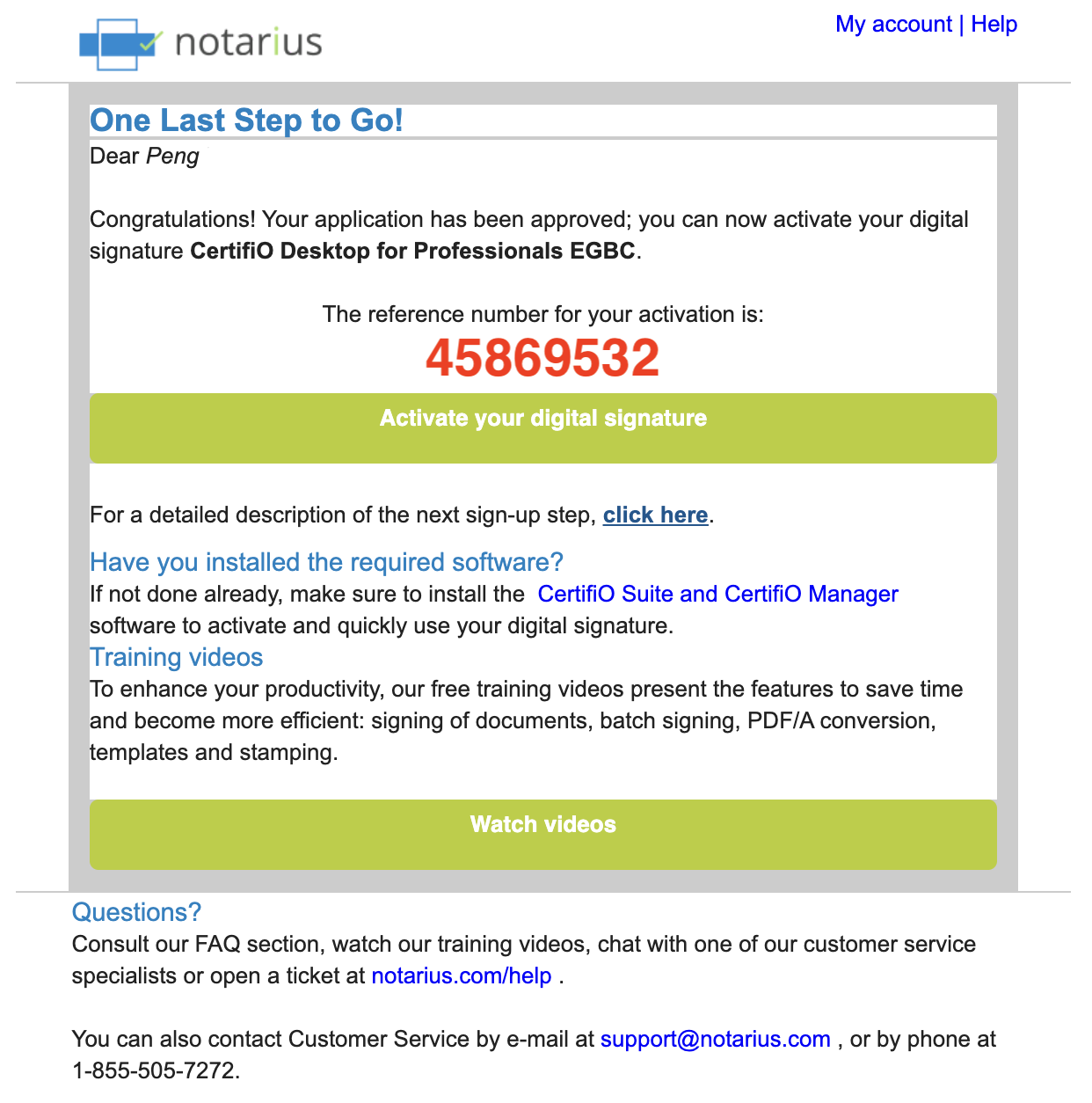
- Approval email received “Digital Signature Application Approved! One Last Step to Go.”
- Don’t forget to check your spam folder
- CertifiO Suite installed on your computer: (Download and install here)
- Contact your IT department if you do not have Admin rights to install the required program (Technical requirements:
Steps to follow
- From your approval email, write down or copy the reference number in red
- Make sure not to copy blank space character
- Then click Activate your digital signature
- You can also access your Notarius account directly and click Activate on the correspondant subscription
- You can also access your Notarius account directly and click Activate on the correspondant subscription
- Log in to your Notarius account

- Our system will check if you have the required software installed to perform the recovery

***For macOS users, only CertifiO Manager will be required.***
- Complete the activation form:
- In the Reference Number field, type or paste the reference number that is in red in your email (Step 1)
- In the Confirmation code field, type the confirmation code (SMS or phone call) received on your second factor phone. Ensure to not copy the blank space character. Click Send a new code if not received within a few minutes
- Choose a location to store your signature file (Local, Cloud or external device)
- Choose a password
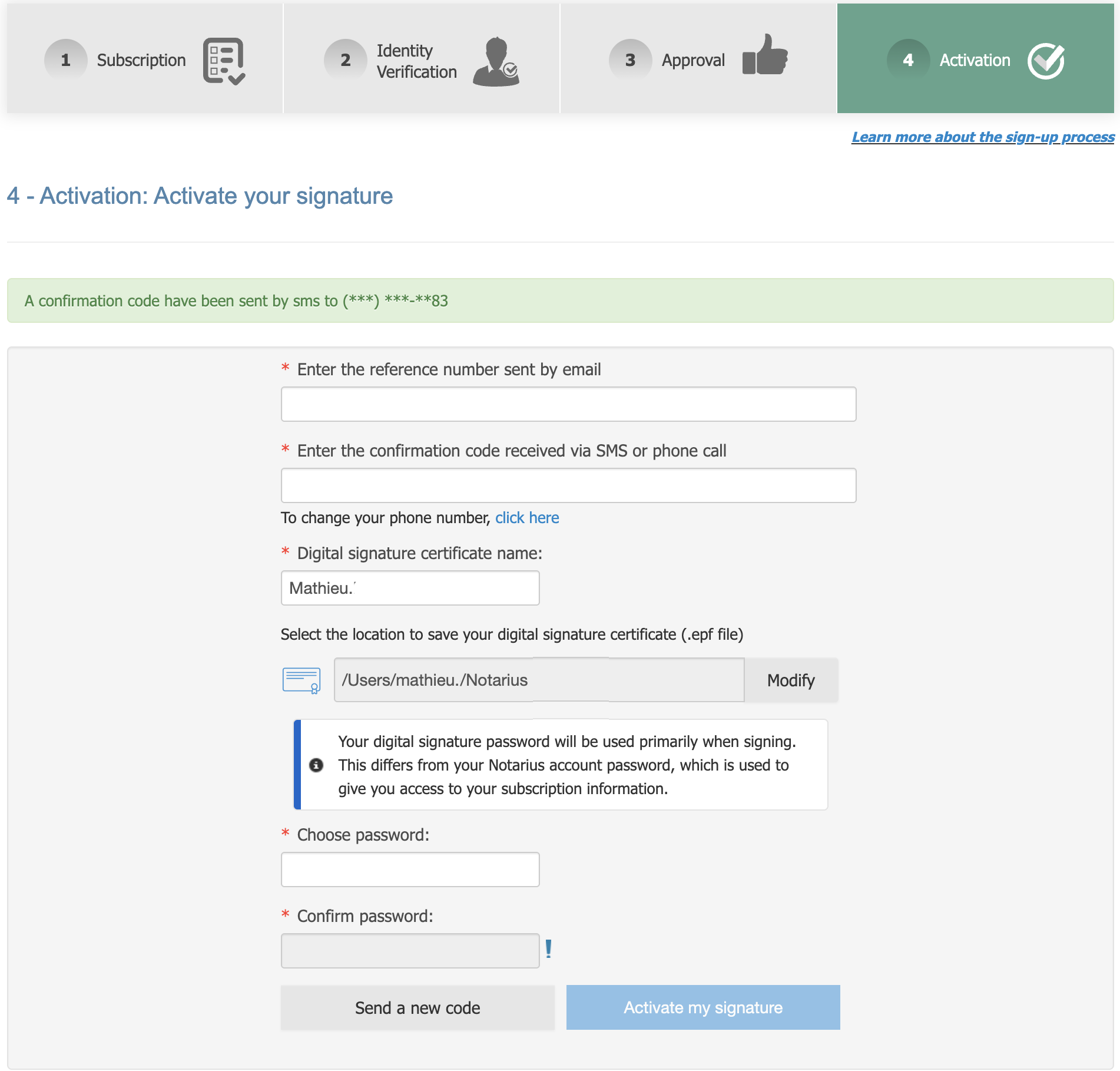
- Click on Activate my signature
- Log in to your newly recovered signature

***For macOS users, this step will be when you sign your fisrt document with the newly recovered file.***
- Your digital signature is now activated
If this is your first time using your digital signature, consult our training videos and user guide here: https://support.notarius.com/en/help/kb/video-training-consigno-desktop/