
Support center
Recover a digital signature CertifiO Desktop through the Entrust Client
macOS Users: This process cannot be performed on macOS computers, you must install the software CertifiO Manager and perform an online recovery, please follow our help page here: https://support.notarius.com/en/help/kb/recovery-ofa-certifio-desktop-digital-signature/
To all users – Use only at last resort: This workaround is not the recommended method for recovering your digital signature certificate. When prompted, try installing CertifiO Manager with assistance from your IT department if needed, and follow our online recovery process: https://support.notarius.com/en/help/kb/recovery-ofa-certifio-desktop-digital-signature/
PreRequisites
- An active CertifiO Desktop subscription
- You have tried our online recovery process: https://support.notarius.com/en/help/kb/recovery-ofa-certifio-desktop-digital-signature/
- Entrust client installed on your computer (Download and install here: https://www.notarius.com/en/resources/download)
- Contact your IT department if you do not have Admin rights to install the required program (Technical requirements: https://support.notarius.com/en/help/kb/installer-suite-certifio/)
Steps to follow
1. Request to Recover
-
- Access your Notarius account

- Click on the Product Name (CertifiO Desktop digital signature) that requires recovery
- Click on Recover my digital signature
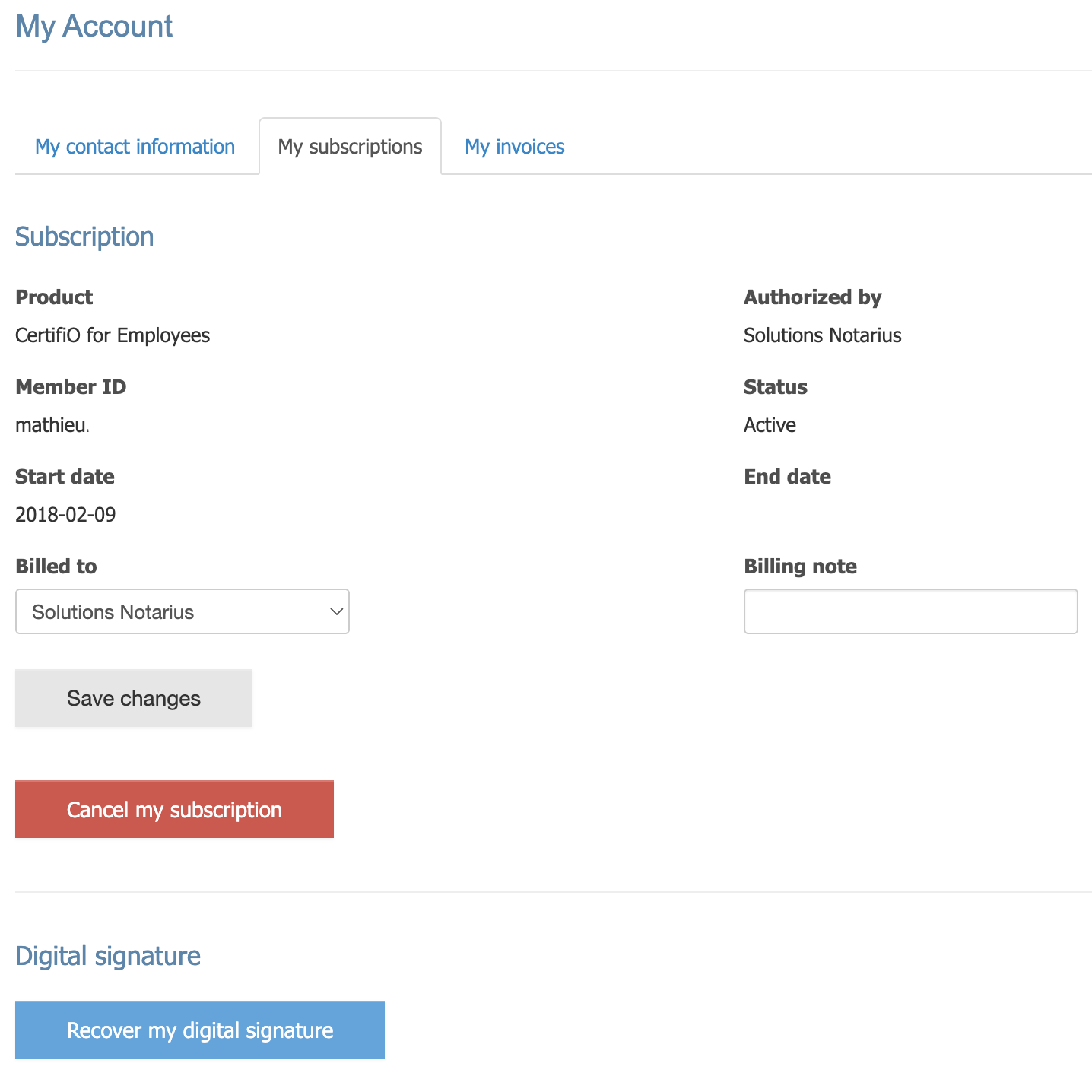
- Confirm on Recover my digital signature a second time on the popup window to confirm your request
- You will receive an email with your reference number highlighted in red
- Don’t forget to check your spam folder
- Write down or copy the reference number in red
- Make sure not to copy blank space character
- Click the Activate my signature button
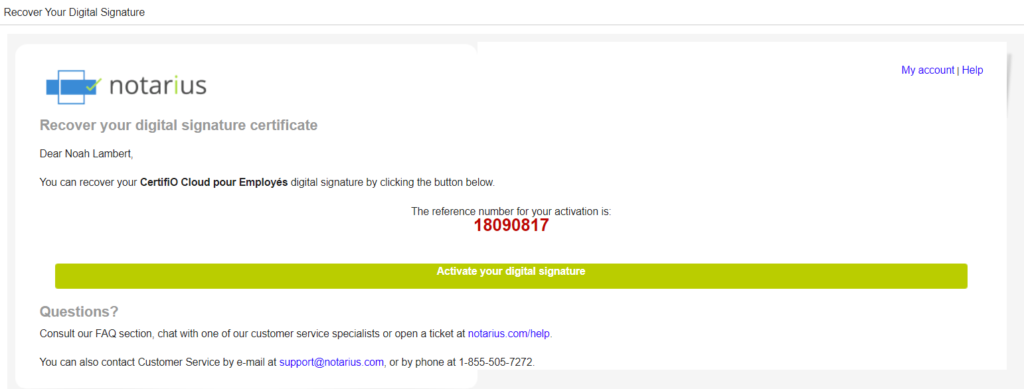
- Our system will check if you have the required software installed to perform the recovery and see that CertifiO Manager is missing
- Contact your IT department to install CertifiO Manager to avoid this procedure in the future
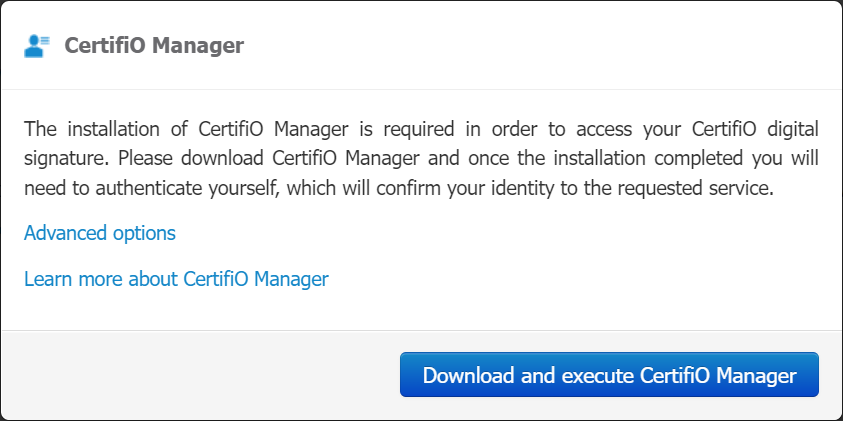
- Contact your IT department to install CertifiO Manager to avoid this procedure in the future
- You need to stay on the webpage displaying the above message and continue to Step 2
- Access your Notarius account
2. Getting your authorization code
Entrust Client needed: To continue this process, you must have the Entrust Client installed on your computer (Download and install here)
- On the webpage asking to Download and execute CertifiO Manager, go to the address bar of your internet browser
- Highlight the end of the URL: digital-signature-kit?ctx=activation&lang=en
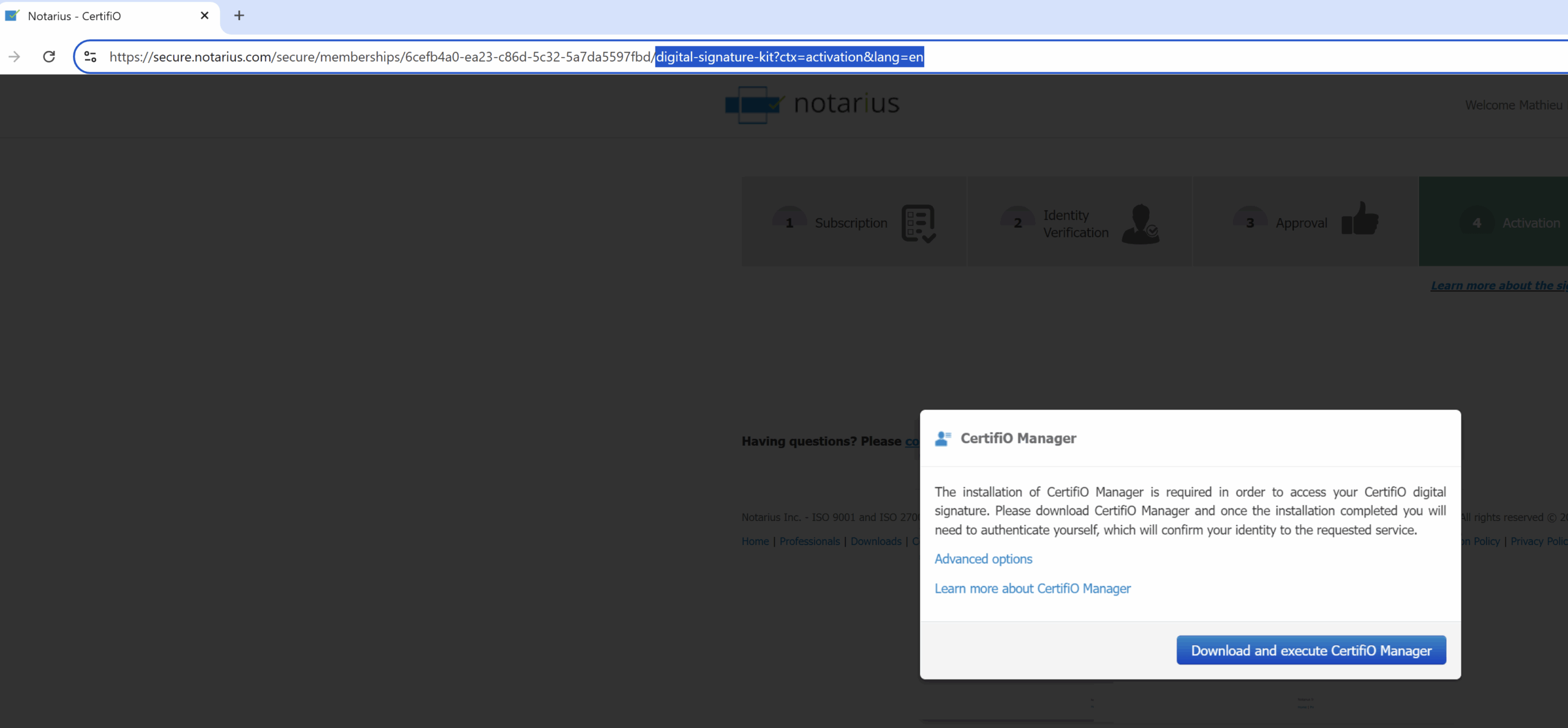
- Replace the end of the URL address by fallback-activation-via-eesp?eesp=1
- The URL address should look like the following

- Press Enter
- You will be redirected to a webpage which will display your authorization code. The page also mentions your reference number sent to your email address (see Step1 : Request to recover)

- You now need to stay on the webpage displaying your authorization code
3. Recover through the Entrust Client
- Right-click on the Entrust Client icon present in your taskbar and click Recover Entrust Digital ID…
- You can also perform a Windows search and find this option by typing “recover”

- You can also perform a Windows search and find this option by typing “recover”
- The recovery wizard will open, click Next
- Select Notarius CA as Certification Authority

- Enter the codes:
- Reference number (from your email)
- Authorization code (from the webpage you stayed on)
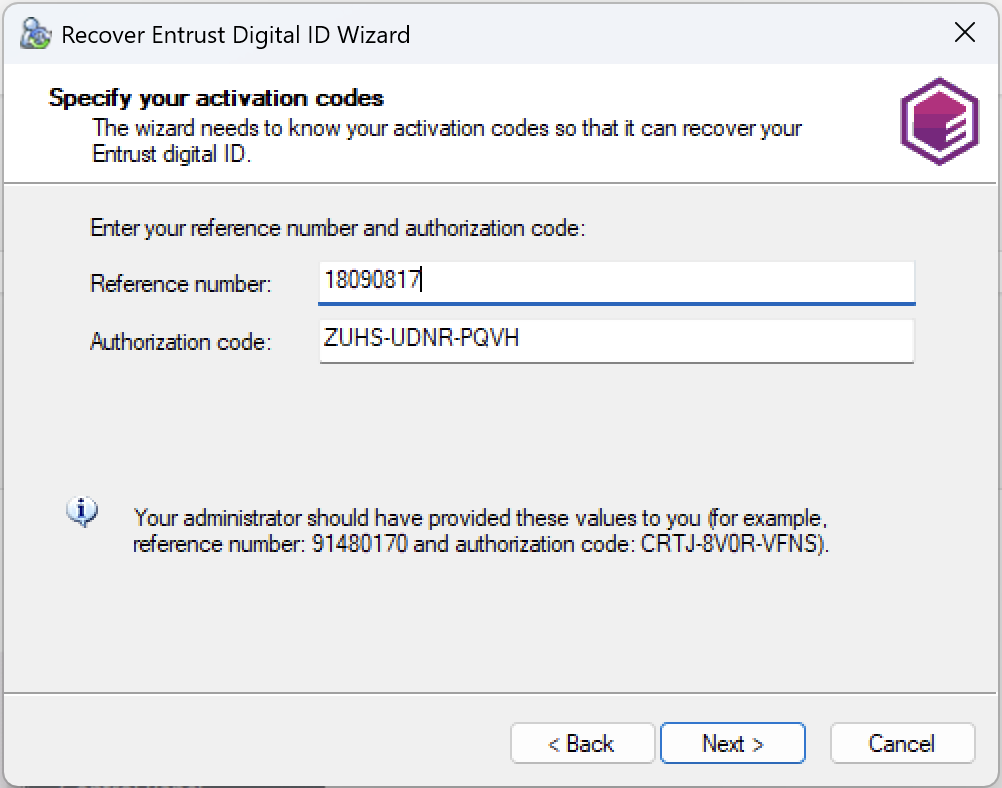
- Click Next
- If you get an error when selecting, please try CCQ as Certification Authority (Back to step 3)
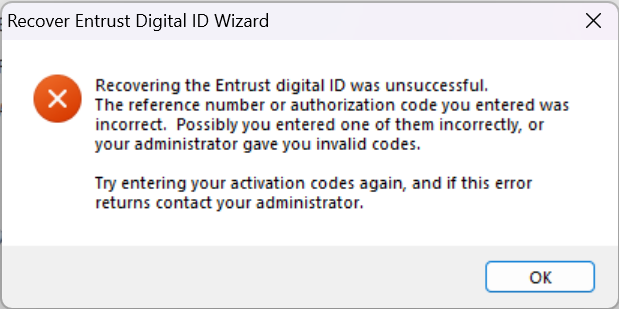
- If you get an error when selecting, please try CCQ as Certification Authority (Back to step 3)
- Click Next again to confirm your Digital ID Enrollment
- Choose a folder to store your digital certificate (.epf file)
- If prompted, Click Yes to create the folder
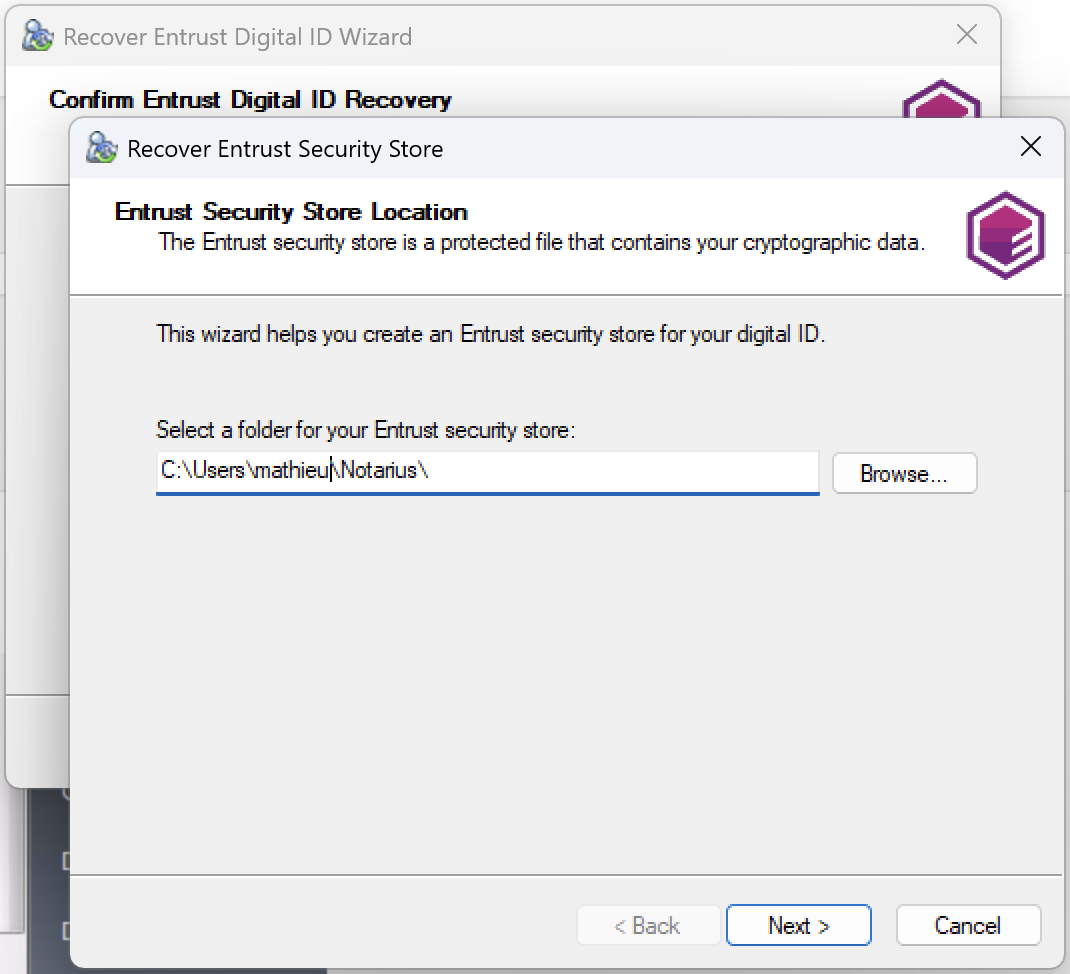
- If prompted, Click Yes to create the folder
- Choose a name for your Digital ID (You can leave the default name)

- Choose a secure password that meets the stated requirements to protect your Entrust security store
- Note that all check marks must be green

- Note that all check marks must be green
- Click Finish, the progress bar will advance

- Click again on Finish
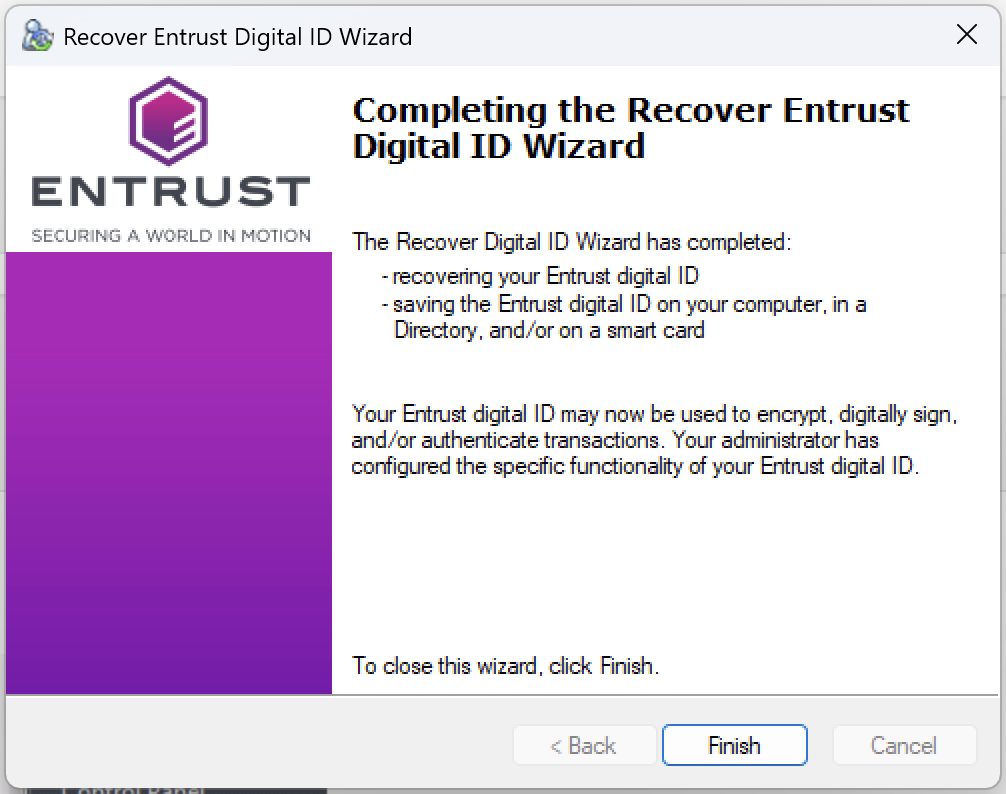
- Log in to your certificate to complete the recovery: How to locate and log into your digital signature certificate (.EPF file)