Support center
Signature Delegation
1- Signatory experience: Delegating signing
Signature delegation allows a signatory to transfer the signature of one or more project documents to another person.
Note: The signature can be transferred multiple times. This action will create a delegation chain including the names of the people authorized to sign the document at any time.
In the signature room, click on the options menu to the right of the “Approve and sign” button and select the “Delegate to another person” option.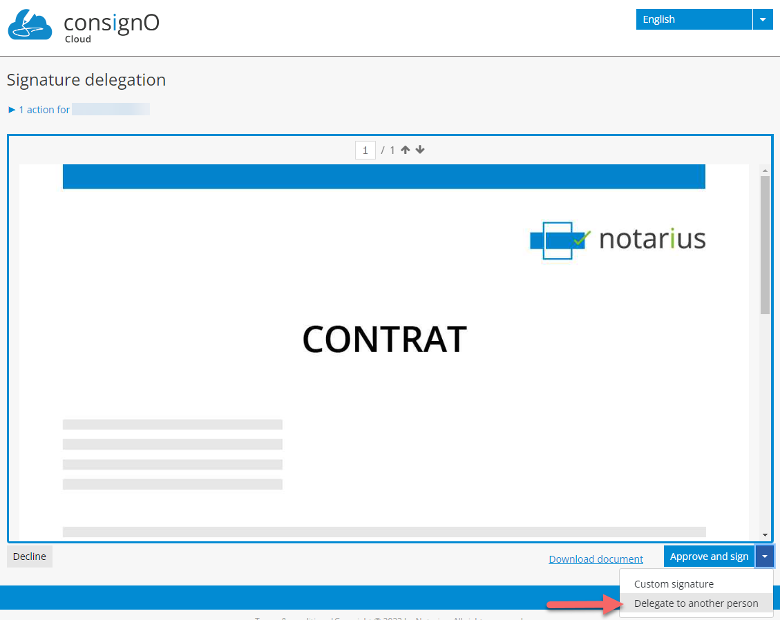
Then indicate the information required from the new signatory.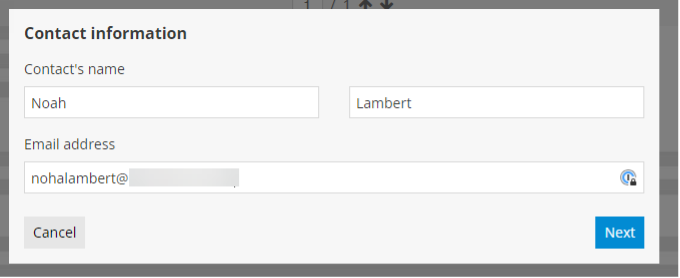
Then fill in the authentication information for that person.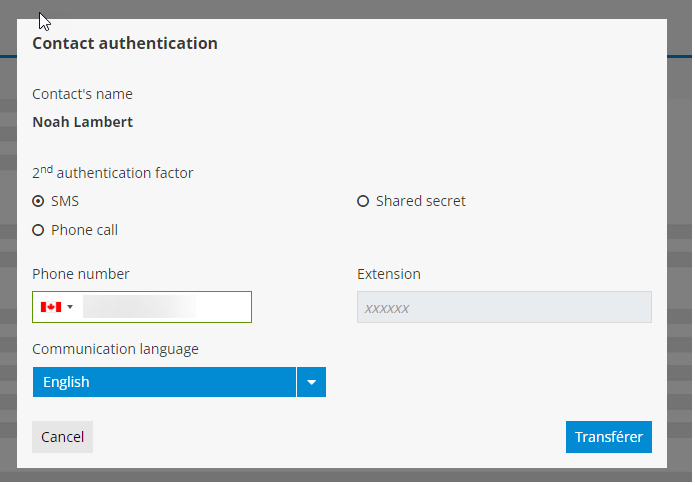
A confirmation message is displayed and you can close the window.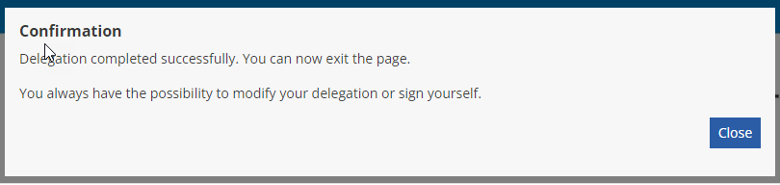
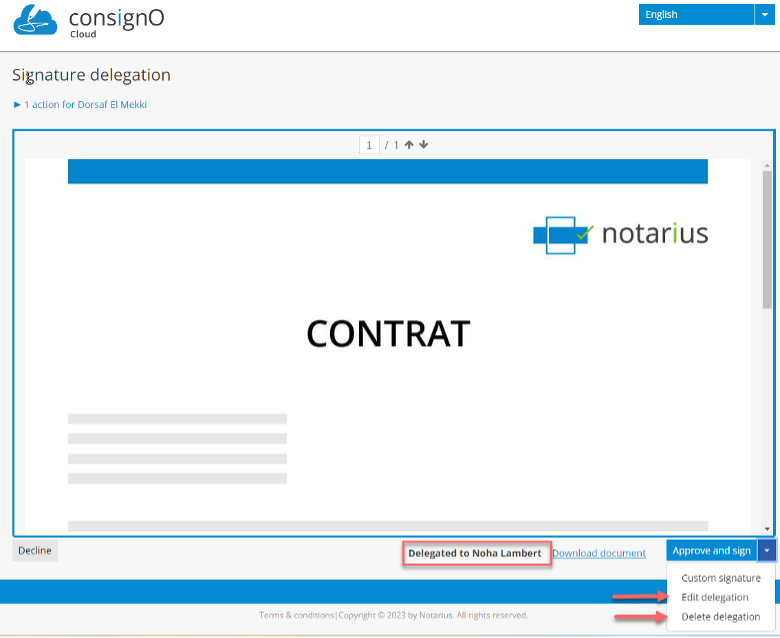
The delegation of signature is carried out to another person. The new signatory will receive an email informing them that their signature is required in the signature project. You can always sign the project or edit or delete the delegation. You can leave the page.
2- Editing and deleting signature delegation
Once delegation has been activated, a delegating signatory can return to the signing room (by clicking on the link received in the initial email informing them that they had to sign a signature project) to edit or delete the delegation. Once in the signing room, click on the options menu to the right of the “Approve and sign” button and the editing and deletion options are displayed.